Gamepad Input Interaction Demo
This document introduces the relevant content of the PANCAKE Unity SDK built-in Input Sample gamepad interaction demo.
Step 1: Import Gamepad Assets
If you have completed the import of the official gamepad assets by following the steps in theQuick Startyou can proceed to Step 2 directly.。
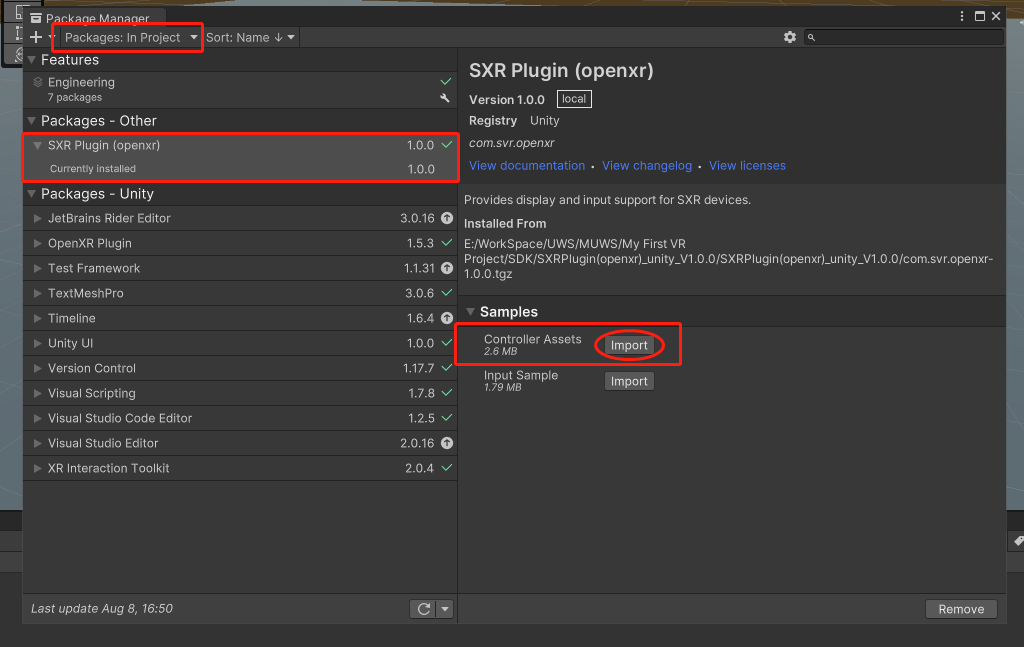
Select Window > Package Manager,and in thePackage Manager select Packages:In Project > SXR Plugin(openxr) > Controller Assets, then clickImport to import the assets.
There are two folders inside, namely assets and inputactions. The assets folder contains gamepad model-related resources.
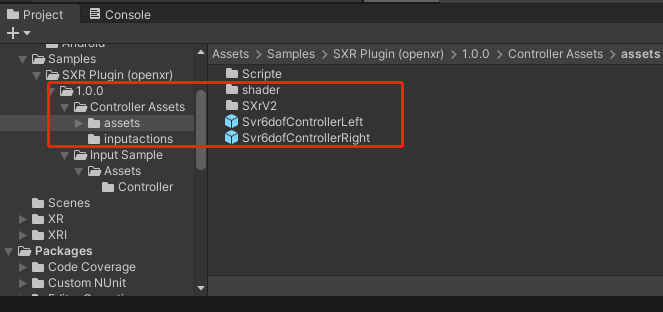
- Svr6dofControllerLeft is the left gamepad model.
- Svr6dofControllerRight is the right gamepad model.
Here is the gamepad button mapping table:
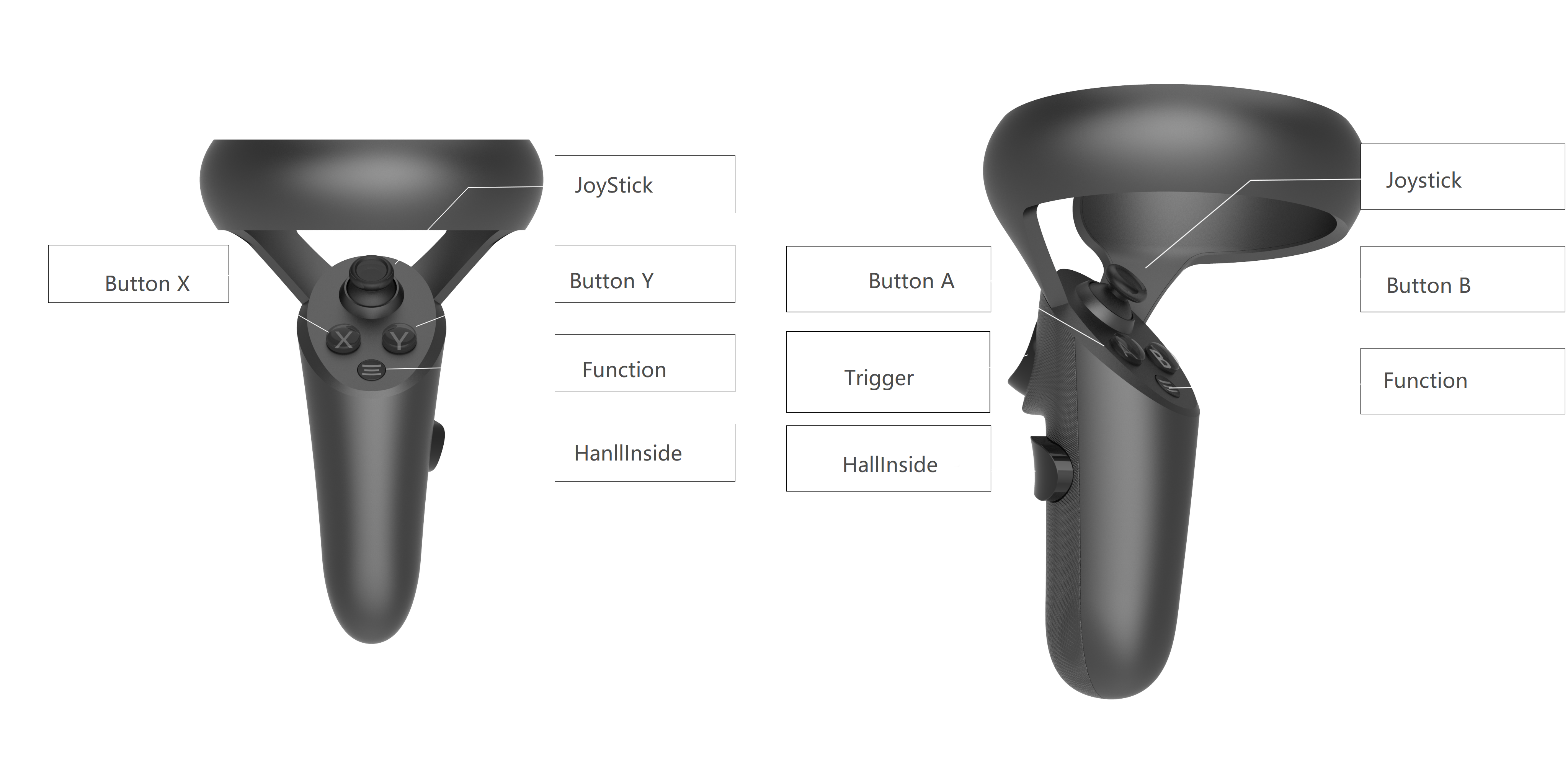
| Physical Button | Virtual Button |
|---|---|
| ButtonX/ButtonA | PrimaryButton |
| ButtonY/ButtonB | SecondaryButton |
| Function | MenuButton |
| HallInside | GripButton |
| Trigger | TriggerButton |
Step 2: Import Input Sample Assets
Select Window > Package Manager,and in thePackage Manager select Packages:In Project > SXR Plugin(openxr) > Input Sample, then click Import import the assets.
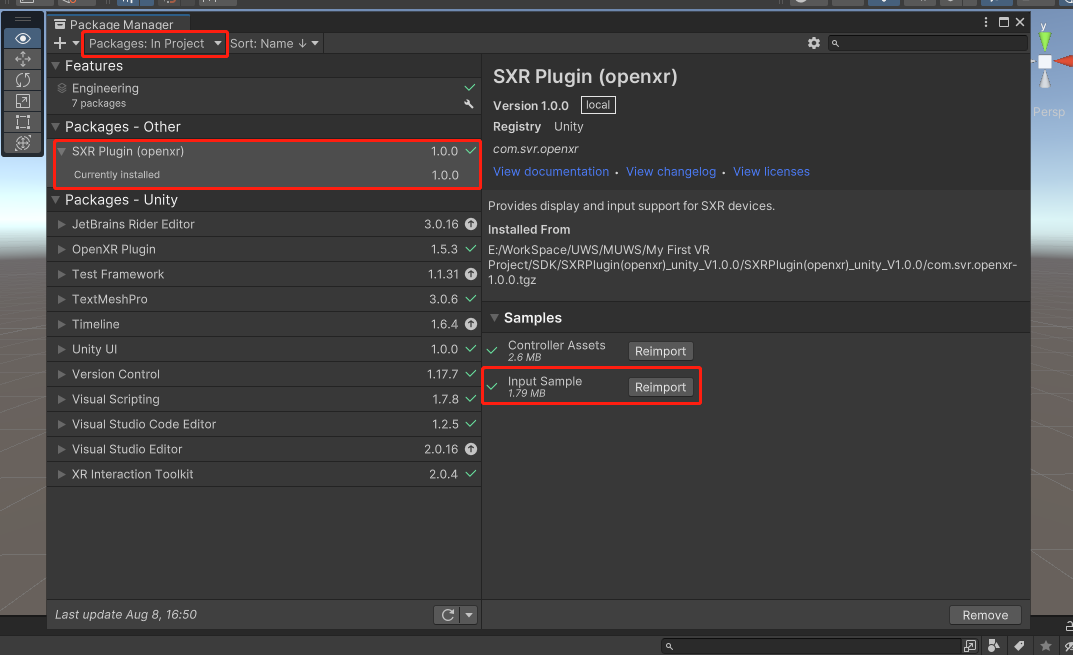
It contains the gamepad input demo, Input Sample。
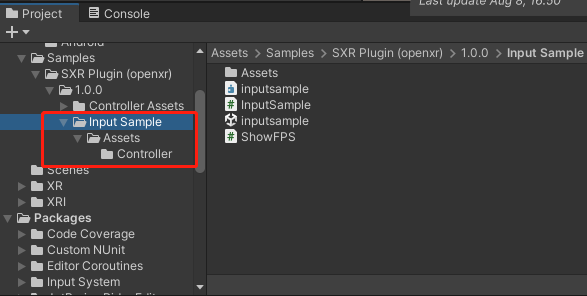
With the import of Input Sample completed, let's introduce the demo below:
InputSample.cs: Example script that uses InputDevice to obtain button, pose, and other data.
inputsample.unity: Demo scene that shows the obtained data.
Step 3: Build and Run the Demo Scene
Connect the PANCAKE device and PC using a USB data cable.
In the Build Settings window, Add Open Scenes to add inputsample as the scene to be built.
===Note===
The inputsample scene needs to be dragged as the first scene.
Set Run Device to All Compatible Devices or the model of the PANCAKE device connected to the PC.
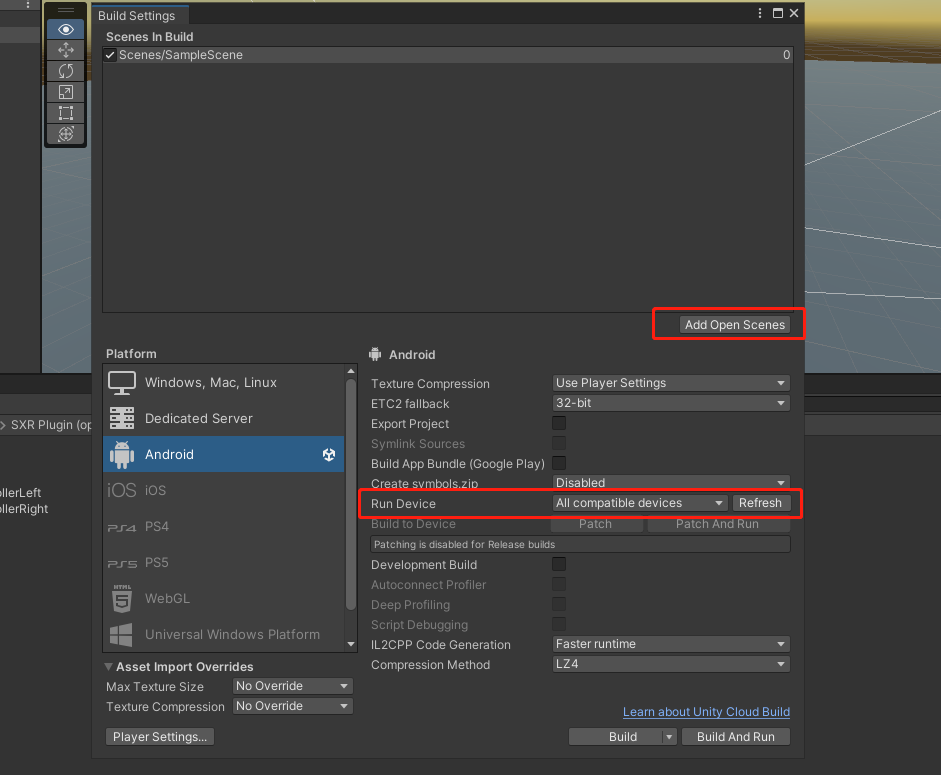
Click Build And Run,and you will see Build Android window.
Select the storage location for the APK file.
Unity will start compiling the application. After the compilation is complete, the PANCAKE device will automatically run the APK file.